%20(1).jpg)
Microsoft Teams has become the default workspace for many modern teams, but communication alone doesn’t keep projects moving. Without a clear system for tracking tasks, ownership, and progress, conversations quickly become cluttered, and deadlines slip.
That’s where using a project management software that integrates with Microsoft Teams makes a real difference. The right tool allows teams to plan work, assign tasks, track progress, and collaborate without constantly switching between platforms.
We’ll cover how project management tools work in practice and why the right integration helps teams stay organized and on track.
Project management tools to use with Microsoft Teams
Microsoft Teams keeps people talking. But projects need more than conversation. They need clarity, ownership, and a place where work doesn’t get lost. The tools below connect directly with Teams and help turn discussion into progress.
1. Dart: Built for work that happens in Teams
Dart is designed for teams that already live inside Microsoft Teams. It keeps tasks close to conversations so work doesn’t drift. The setup is light, and the focus stays on execution rather than configuration. Teams that value speed and clarity tend to settle into Dart quickly.
Key features:
- Task creation and ownership: Create tasks, assign owners, and set deadlines from Teams.
- Real-time collaboration: Comment, update statuses, and share files without leaving chats.
- Flexible workflows: Boards and dashboards adjust to different ways of working.
Pros:
- Easy to understand from day one
- Keeps work and discussion in one place
- Doesn’t interrupt existing team habits
Cons:
- Limited advanced analytics
- No portfolio-level planning tools
- Less suited for heavily regulated teams
2. Trello: Straightforward visual task tracking
Trello organizes work using boards and cards. You can see what’s happening without digging through menus. It works best when projects are simple and priorities are clear. There’s very little setup involved, which makes it easy to get started.
Key features:
- Board-based organization: Track tasks using cards and lists.
- Teams collaboration: Share boards and updates inside Teams channels.
- Task-level details: Add checklists, attachments, labels, and due dates.
Pros:
- Very easy to use
- Clear visual structure
- Quick to set up
Cons:
- Limited support for complex work
- Basic reporting
- Harder to manage at scale
3. Asana: Planning and structure for detailed work
Asana is built for teams that plan. It handles dependencies, timelines, and responsibility clearly. This is useful when work involves many moving parts. It suits teams that prefer defined processes over loose task lists.
Key features:
- Task and project syncing: View tasks and updates inside Teams.
- Timeline planning: Visualize dependencies and milestones.
- Collaboration tools: Share files, links, and discussions.
Pros:
- Strong planning tools
- Good visibility into progress
- Works well across departments
Cons:
- Takes time to learn
- Can feel rigid for simple tasks
- Setup requires commitment
4. Monday.com: Visibility across projects and teams
Monday.com focuses on showing work clearly. It highlights progress, ownership, and workload visually. Teams often use it to understand who is doing what at any moment. It’s especially useful when managing multiple projects at once.
Key features:
- Custom boards: Build workflows around your process.
- Teams updates: Sync changes and notifications into channels.
- Workload views: Track capacity across team members.
Pros:
- Strong visual reporting
- Useful for managing workload
- Scales across teams
Cons:
- Setup takes time
- Can feel busy if overused
- Cost increases with features
5. Microsoft Planner: Basic task management inside Teams
Planner is part of the Microsoft ecosystem. It works immediately inside Teams and keeps things simple. There’s little room for complexity, but that can be an advantage. For many teams, it’s enough to stay organized without adding another tool.
Key features:
- Task creation in Teams: Assign tasks from chats or channels.
- Visual boards: Track progress with simple cards.
- Shared collaboration: Comments and files stay in Teams.
Pros:
- No extra tools required
- Easy for anyone to use
- Included with many Microsoft plans
Cons:
- Very limited reporting
- No advanced workflows
- Not built for long-term projects
6. ClickUp: One platform with many options
ClickUp offers a wide range of ways to manage work. Teams can shape it to match their process. That freedom can be helpful, but it comes with trade-offs. How well it works often depends on how much time a team invests upfront.
Key features:
- Multiple views: Lists, boards, timelines, and Gantt charts.
- Teams notifications: Receive task updates in Teams.
- Deep customization: Automations, templates, and custom fields.
Pros:
- Highly flexible
- Supports many workflows
- Grows with team needs
Cons:
- Can feel overwhelming
- Requires setup time
- Easy to overcomplicate
7. Wrike: Control for large and complex teams
Wrike is designed for scale. It’s often used where reporting, approvals, and structure matter. Smaller teams may find it more than they need. It’s best suited to environments where consistency is critical.
Key features:
- Teams alerts: Receive updates directly in Teams.
- Advanced planning: Manage dependencies and approvals.
- Enterprise reporting: Track performance across projects.
Pros:
- Strong reporting capabilities
- Good governance controls
- Handles complex environments
Cons:
- Steep learning curve
- Higher cost
- Too heavy for simple workflows
Guide for choosing the best option
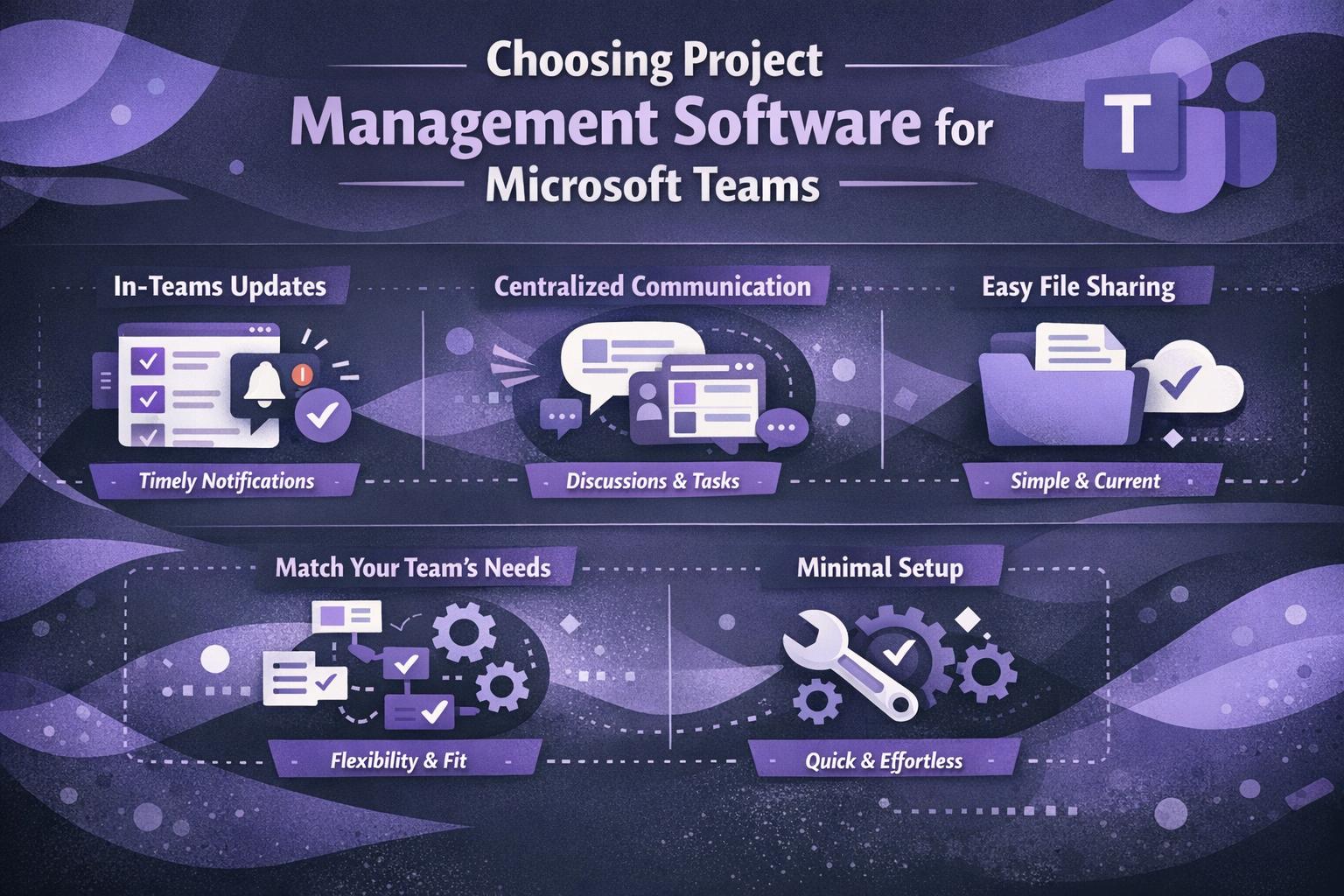
Not every tool that “works with” Microsoft Teams actually fits the way teams work. Some integrations feel bolted on, while others genuinely improve how projects run day to day. Choosing the right software comes down to how well it supports your workflow inside Teams, not just whether it connects.
Look for meaningful in-Teams updates
A strong integration should surface the right updates at the right time. Task assignments, status changes, and comments should appear clearly in Teams without flooding channels with noise. If updates aren’t easy to follow, teams stop paying attention.
Prioritize clear, centralized communication
Project discussions work best when they stay close to the work itself. The right tool allows conversations, decisions, and updates to live alongside tasks rather than being scattered across chats and emails. This makes it easier to understand context and avoid repeating the same conversations.
Make sure file access is simple and current
Projects often stall because people can’t find the latest document. Software that works well with Microsoft Teams should make file sharing straightforward and keep versions consistent. Everyone should know where files live and trust that they’re working from the most recent one.
Match the tool to your team’s complexity
Some teams need detailed timelines and dependencies. Others just need clear task ownership. Choose software that matches how complex your projects really are, not how complex they might become someday. Overly heavy tools slow teams down just as much as tools that are too basic.
Check how much setup and maintenance are required
A good integration shouldn’t require constant adjustment. If a tool needs weeks of setup or ongoing admin work to stay usable, it often gets abandoned. The best options fit naturally into Teams and improve structure without demanding extra effort.
Challenges when using project management tools with MS Teams
Using Microsoft Teams as a central workspace becomes far more effective when it’s paired with the right software. When the integration is done well, teams spend less time managing tools and more time getting work done.
For organizations evaluating project management software that integrates with Microsoft Teams, these benefits are often the deciding factors.
Key benefits include:
- Improved productivity: Workflows stay in one place, reducing the need to switch between apps or chase updates across tools.
- Clearer communication: Project discussions remain tied to tasks, decisions, and timelines, making conversations easier to follow.
- Stronger collaboration: Teams can share files, comment on tasks, and work together in real time without losing context.
- Better accountability: Task ownership, deadlines, and progress are visible, which makes responsibility clear and follow-ups simpler.
Challenges when using project management tools with MS Teams
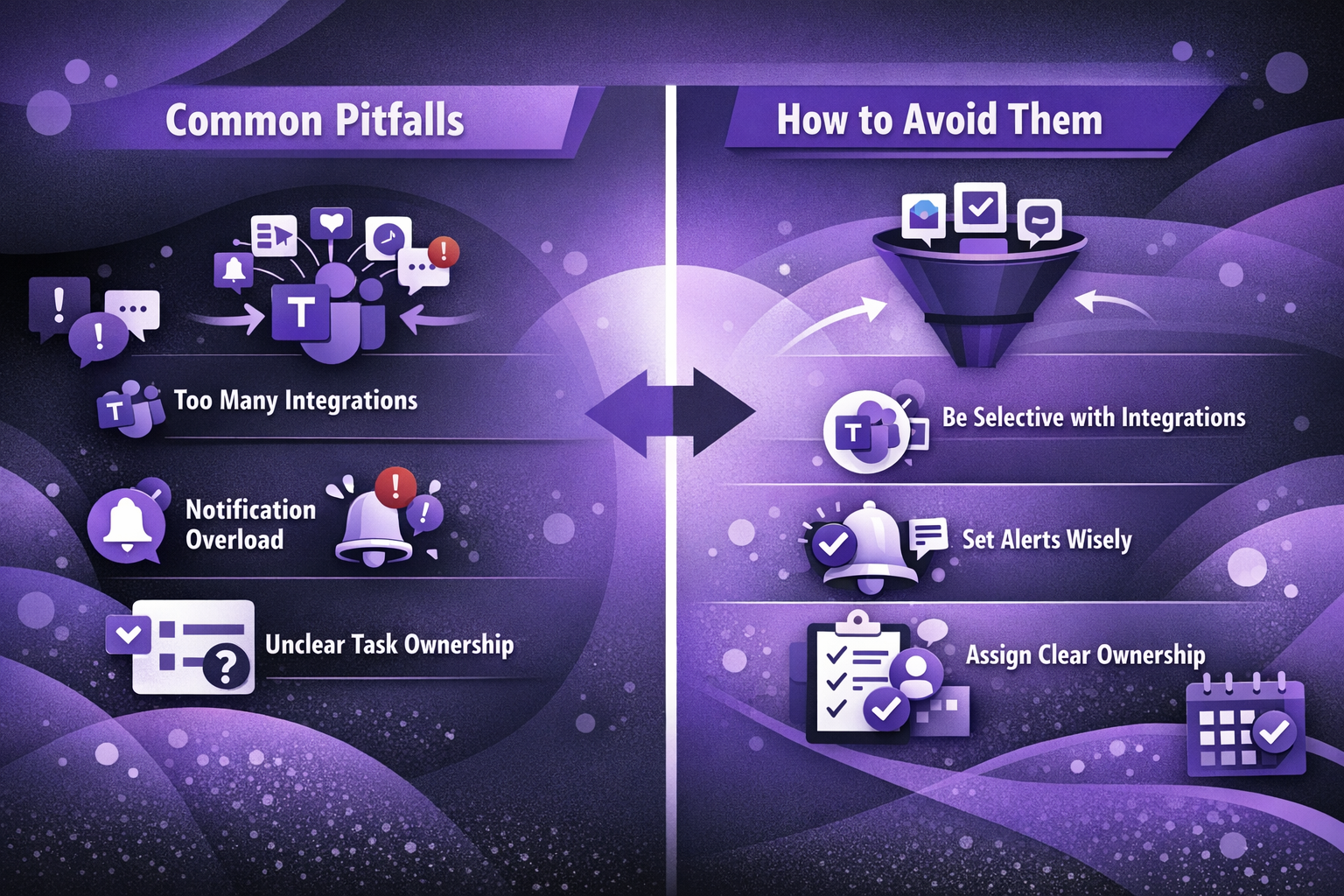
When using a projectmanagement software that integrates with Microsoft Teams, even strong integrations can create problems if they’re not set up thoughtfully. Most issues come from trying to do too much inside Teams or failing to define how the tool should be used. These are the most common pitfalls teams encounter.
Common pitfalls to watch out for:
- Too many integrations at once: Adding multiple tools can clutter channels and flood teams with notifications, making it harder to focus.
- Poor notification settings: If alerts aren’t configured properly, important updates get missed or ignored.
- Unclear task ownership: Tasks without clear owners often stall, especially in collaborative environments.
How to avoid them:
- Be selective with integrations: Only connect tools that support core workflows. Teams using project management software that integrates with Microsoft Teams often limit integrations to task tracking and reporting to keep Teams focused.
- Set notifications with intent: Configure alerts for task assignments, comments, and deadlines, and mute anything that doesn’t require action.
- Assign ownership clearly: Every task should have one accountable owner, a clear deadline, and visible progress tracking to prevent confusion.
The future of project management inside Microsoft Teams
Project management software that integrates with Microsoft Teams continues to evolve as team workflows change. The focus is less on adding features and more on removing friction. These trends reflect where the category is heading.
Key trends to watch:
- AI support for planning and task management: Many tools now use AI to suggest priorities, flag delays, and handle routine updates. This helps teams spend less time tracking work and more time making decisions.
- Stronger connection between tasks and conversations: Project updates increasingly appear directly within Teams chats and channels. This keeps work visible without forcing teams to check separate tools.
- Clearer visibility into team workload: Software is putting more emphasis on showing who is available and where work is piling up. This makes it easier to balance tasks before issues arise.
- Easier adjustment to changing priorities: Modern tools allow teams to update timelines, responsibilities, and scope without breaking the workflow. This reflects how often plans change in real projects.
- Cloud-first design for flexible work: Most platforms now assume remote or hybrid work. Access, collaboration, and performance are built around teams working from different locations.
Key features to check in project management software for Microsoft Teams
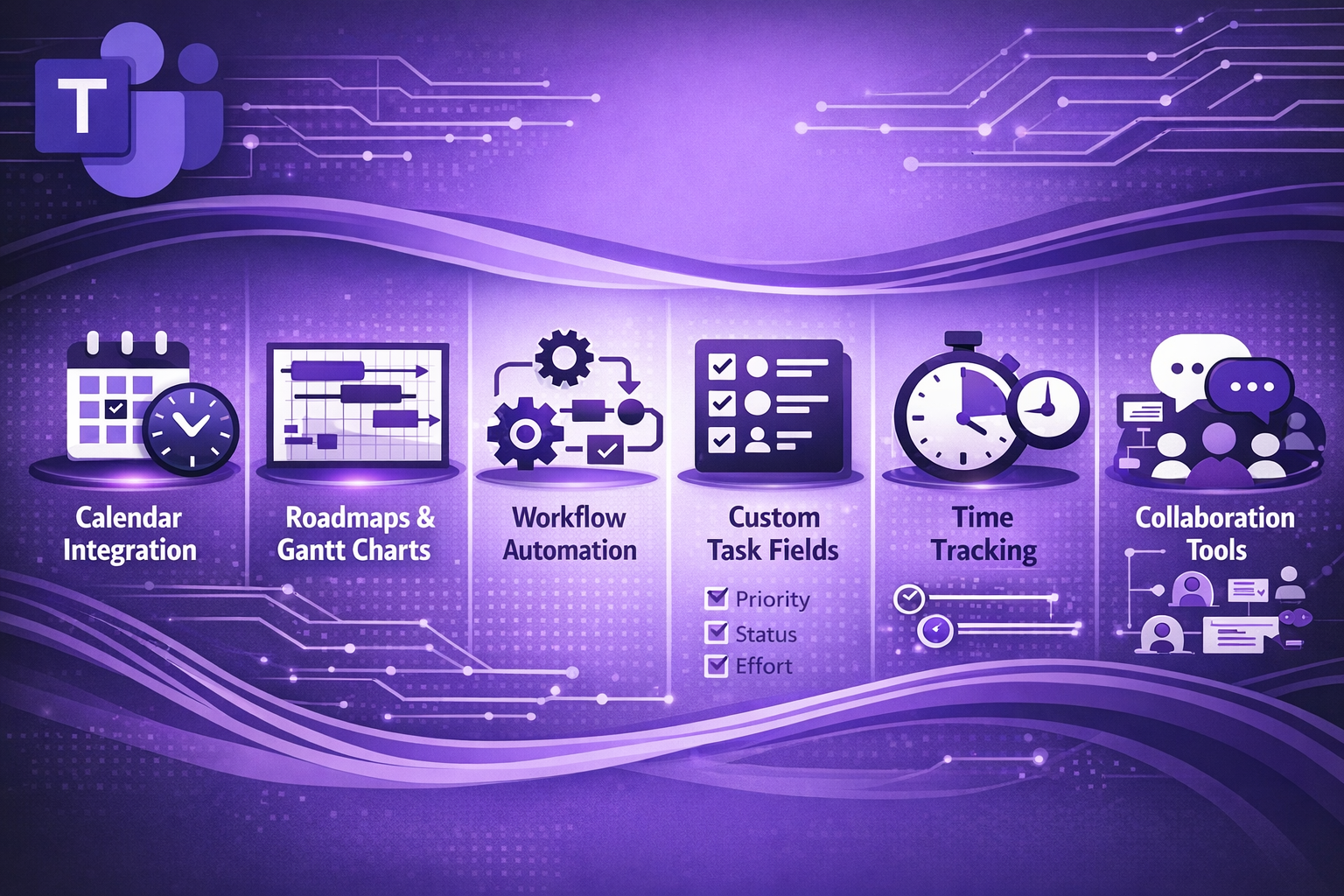
Not all tools offer the same depth when integrated with Microsoft Teams. The most useful ones focus on planning, visibility, and collaboration without adding unnecessary complexity. These are the core features that matter most in day-to-day project work.
Key features to prioritize:
- Calendar integration: Tasks, milestones, and deadlines should align with team calendars so schedules stay realistic and conflicts are easier to avoid.
- Roadmaps and Gantt charts: Visual planning tools help teams understand timelines, dependencies, and how individual tasks contribute to the bigger picture.
- Workflows and automation: Automated steps reduce manual follow-ups and help work move consistently through defined stages.
- Task properties: Custom fields such as priority, status, owner, or effort give teams more control over how work is tracked and reviewed.
- Time tracking: Recording time spent on tasks helps teams manage workload, estimate future projects, and understand where effort is going.
- Collaboration tools: Features like forms, team structures, and role-based access keep communication organized and responsibilities clear.
When these features are well integrated into Microsoft Teams, teams gain structure without losing flexibility. The result is clearer planning, better coordination, and fewer gaps between conversation and execution.
Maximize your team’s efficiency with the right tools
Microsoft Teams works best when it’s supported by project management software that integrates with Microsoft Teams, bringing structure to everyday work. The right choice helps teams plan clearly, track progress, and keep conversations tied to real tasks.
Fit matters more than features. When a tool integrates naturally with Teams and matches how your team works, collaboration becomes simpler and more consistent. For teams looking to keep project work close to their conversations, Dart offers a focused approach built around clarity and collaboration.
_light%201.avif)